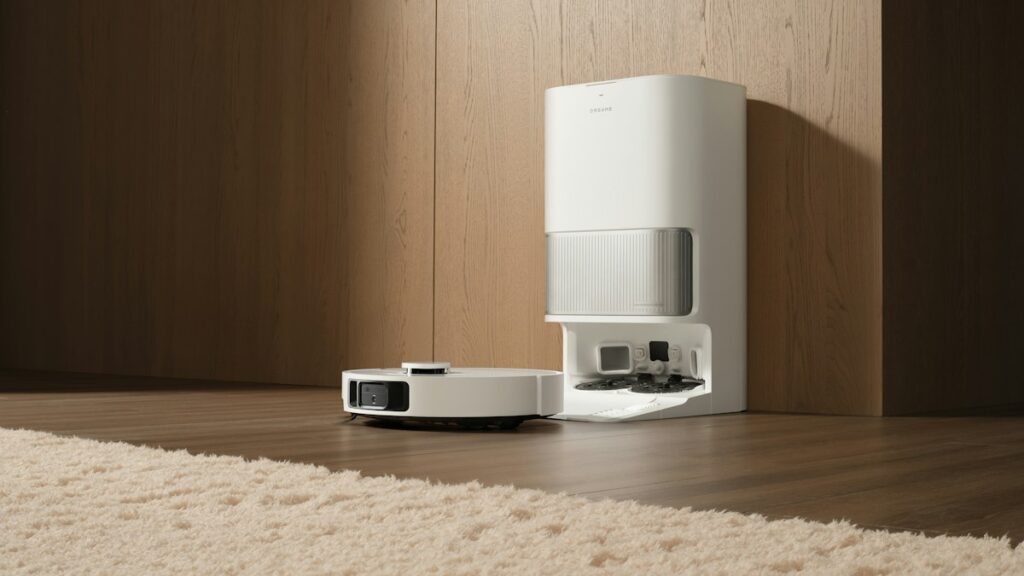

Few smart-home issues are more frustrating than a robot vacuum finishing a cleaning run and then wandering around its charging base. The cause is often a simple placement or maintenance problem rather than a failed motor or expensive sensor.
This checklist starts with the safest, fastest checks. Because docking systems vary, use the appliance manufacturer’s instructions for exact clearances, cleaning methods, and reset steps.
1. Verify That the Dock Has Power
Check that the charging station is firmly connected to its power supply and that the outlet works. Look for the status light or charging indicator described in the user manual. If the dock sits on a smart plug, confirm that no automation has turned the plug off during a cleaning cycle.
A charging base can look normal while a loose connector prevents power from reaching it. Reseat only user-accessible connectors, and stop if you notice heat damage, a frayed cable, or an unusual smell.
2. Clear the Approach Path
Most models need open floor space around their charging station to align properly. Remove shoes, cables, pet bowls, lightweight rugs, and furniture that blocks a straight approach. Place the dock on a stable, level surface against the wall, following the clearance guidance for your model.
Reflective surfaces, mirrors close to floor level, and sudden changes in floor height can confuse certain navigation systems. Test the dock in a simple open location if the original spot is crowded.
3. Check and Clean Charging Contacts
Dust or debris on charging contacts can stop the robot from charging even when it finds the dock successfully. Turn the machine off or follow the manufacturer’s cleaning procedure before touching contacts. Use the recommended dry, soft cloth or brush; avoid spraying liquids into ports, connectors, or moving parts.
Once cleaned, place the vacuum onto the dock manually and check whether charging begins. If it charges manually but cannot align itself automatically, focus your next steps on navigation and dock placement rather than the power supply.
4. Check Sensors and Wheels for Obstructions
Wipe accessible optical sensors as instructed in the manual. Remove hair and string from wheels and brushes where safely accessible. A stuck wheel may prevent the robot from reaching its base or turning precisely enough for the final approach.
Never open a battery enclosure or tamper with internal electronics to solve a docking issue. If a wheel will not rotate freely after routine cleaning, use the manufacturer’s support process.
5. Review Maps, No-Go Zones, and Dock Location
Map-based robots may store the dock’s location. If you moved the base without updating the map, the vacuum may repeatedly navigate to its former position. Check the app for the current home map and whether the dock is displayed in the right room.
Look for no-go zones, virtual walls, or room boundaries that block the route home. Temporarily simplify the map, then start a short cleaning run and ask the robot to return. Follow the product instructions before deleting or rebuilding a saved map, especially if you have carefully configured room divisions.
6. Test Battery, Firmware, and App Settings
A heavily depleted battery, interrupted update, or unusual schedule can affect behavior. Allow the robot to charge according to the manual, install only official firmware, and check the app for specific error codes. Restart the device using its documented controls if the basics do not help.
Do not factory-reset as a first step: it may erase maps, settings, and connected-home integrations without solving the underlying problem.
7. Document the Failure Before Contacting Support
- Record the model, firmware version, and exact error message.
- Note whether the robot reaches the dock but fails to charge, or never finds it.
- Try one return-to-dock test from a short distance and another from a different room.
- Photograph the dock placement and its surrounding clearances.
- Check warranty support before attempting repairs outside standard maintenance.
For broader preparation tips that can help prevent connected-device issues, see our smart home readiness checklist.
Bottom line: Work from power and placement toward maps and software. A methodical test usually reveals more than repeatedly resetting the entire robot.
Related Smart Home Finds guides
About the Author
Safira Salsabila
Smart Home Gadget Guides
Safira Salsabila is an editorial pen name used by the Smart Home Finds team for practical smart home gadget guides, smart lighting, and everyday device setup. Articles published under this byline focus on clear explanations, useful checklists, and real-world considerations that help readers make informed decisions. Content is prepared and reviewed by the editorial team. This byline does not imply an individual professional certification or independently verified personal testing experience.
This content is published through the editorial process of Smart Home Finds. Editorial pen names identify writing roles and do not constitute verified personal identity, employment history, or professional credentials.