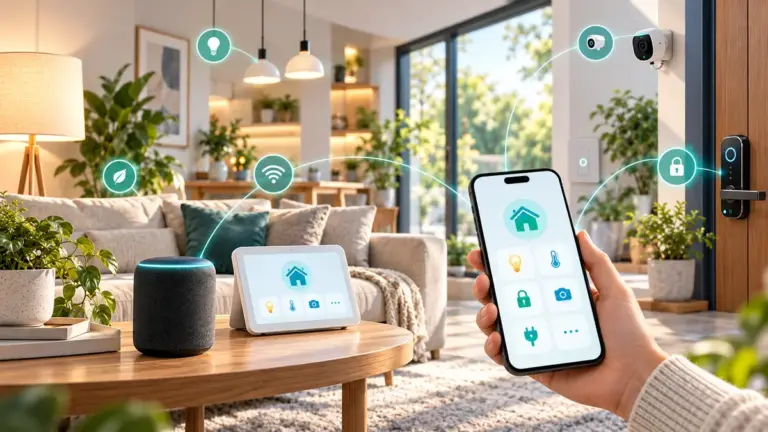
A device can expose features that a household never uses, such as remote sharing, voice purchasing, geofencing, cloud recording or public discovery. Disabling unnecessary capabilities can reduce account complexity and data exposure without discarding useful basic functions.
Understand the requirements
Begin with the people affected as well as the product. A common-room microphone, access code or camera may involve visitors and family members who do not administer the device. Decide which records are necessary, how long to retain them and who should be able to change permissions before enabling optional sharing.
A practical approach
Review the official app feature by feature and write down what each option actually controls. Remove integrations that nobody recognizes, disable unused remote access or personal-result features where available, and keep safety alerts and firmware updates functioning.
Document the before-and-after configuration without copying passwords or recovery codes into a shared note. If a device stores events, inspect the retention settings and any deletion tools independently. Recheck after a major firmware update or account migration, since settings and feature names can change between product revisions.
How to test the result
Test the core device action after each change. If a useful automation stops, identify the required permission and restore only that supported capability. Repeat the audit after major updates, because new features may introduce new prompts.
Constraints and safe operation
Do not disable motion sensing, thermal protection, smoke alarms, lock safety mechanisms or network updates simply to reduce the number of active settings. 'Unused' should be judged by operational purpose, not by whether an icon was clicked recently.
Prefer targeted restrictions over disabling every network connection. Some devices need supported internet access for patches even when everyday controls work locally. If an account compromise is suspected, use official recovery channels on a trusted device and prioritize equipment that controls doors or exposes household recordings.
Key points to check
- Review the official app feature by feature and write down what each option actually controls.
- Test the core device action after each change.
- Do not disable motion sensing, thermal protection, smoke alarms, lock safety mechanisms or network updates simply to reduce the number of active settings.