Penulis · Smart Home Finds
admin
Kontributor di Smart Home Finds.
Artikel ini diterbitkan dan menjadi tanggung jawab redaksi Smart Home Finds.
A practical smart home security checklist helps you enjoy connected cameras, speakers, locks, lights, and sensors without overlooking basic privacy protections. You do not need to be a cybersecurity expert: start with your router and accounts, review what each device can access, and keep software current.
Table of Contents
- 1. Secure your home router
- 2. Protect accounts and apps
- 3. Keep devices updated
- 4. Review privacy settings
- 5. Check cameras and microphones
- 6. Separate devices when practical
- 7. Build a simple maintenance routine
- Frequently asked questions
1. Secure your home router first
Your router connects many smart devices to the internet, so it deserves attention before you configure individual gadgets. Change the router’s default administrator password and use a unique Wi-Fi password that is difficult to guess. If the router still uses an outdated security mode, check its manual for supported modern options; WPA3 is preferable when all required devices support it, while WPA2-AES remains common on compatible equipment.
- Change default administrator credentials, not just the Wi-Fi password.
- Install available router firmware updates and enable automatic updates if offered.
- Use the strongest practical Wi-Fi encryption mode supported by your devices.
- Disable remote administration if you do not need it.
- Review connected-device lists and remove unknown or retired devices.
The US Federal Trade Commission recommends changing default router settings, enabling encryption, and checking for updates. See its guide to securing your home Wi-Fi network.
2. Protect accounts and companion apps
A connected device can be well configured but still exposed if someone takes over the account that controls it. Use a unique password for each important account, ideally stored in a reputable password manager. Turn on multifactor authentication (MFA) for the manufacturer’s account, email account, and any app that offers it. Your email is especially important because it may be used to reset other passwords.
Review who has access to your home system. Remove old household members, contractors, or shared accounts that no longer need access. Give each person their own login when possible instead of sharing one administrator password. If a service offers roles or limited permissions, give guests only the access they need.
3. Keep device firmware and apps updated
Smart speakers, plugs, bulbs, locks, cameras, thermostats, and their mobile apps may receive software updates that fix security problems or bugs. Enable automatic updates when the manufacturer supports them, and periodically check devices that require manual updates. Keep your phone’s operating system updated too, because it is often the control center for your home.
Before buying a device, look for a clear update policy and a stated support period. If a product no longer receives security updates, consider whether it should remain connected—especially if it controls entry, records video, or handles sensitive information. Do not assume every old device is immediately unsafe, but weigh the risk of using unsupported software.
4. Review privacy settings and data collection
Open the privacy settings for each device and app. Look for options controlling voice recordings, diagnostic data, personalized advertising, location access, and cloud storage. Disable features you do not use. For voice assistants, check whether voice history can be reviewed or deleted and whether a physical microphone mute is available. For smart TVs, review viewing-data and advertising settings.
Read the privacy policy for a clear explanation of what data is collected, where it is stored, how long it is retained, and whether it is shared. If a device requests permissions that do not fit its purpose, investigate before granting them. Convenience features may require some data, but you should understand the trade-off.
5. Check cameras, doorbells, and microphones
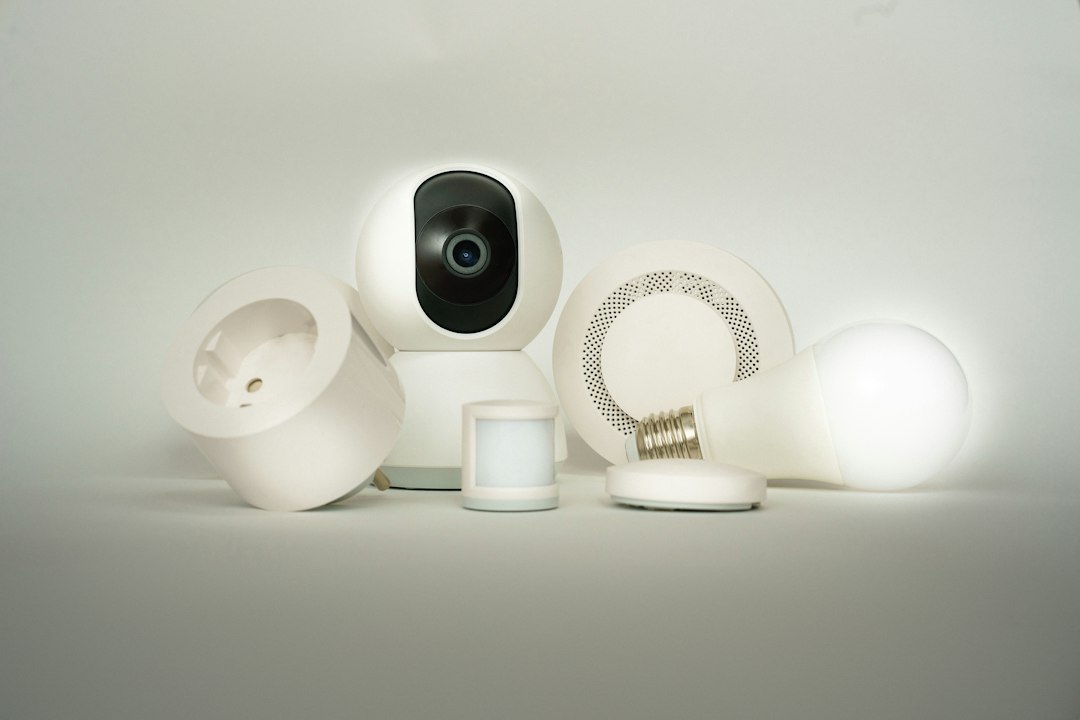
For cameras and video doorbells, use a unique password, enable MFA if available, and check who can view live feeds or recordings. Review shared users and remove access that is no longer needed. Prefer products that explain how video is protected in transit and in storage, and check whether recordings are stored locally, in the cloud, or both.
Place cameras thoughtfully: avoid recording private areas where monitoring is unnecessary, and tell household members or visitors when recording is relevant. If remote viewing is not useful, see whether it can be disabled. The FTC’s guide, How To Secure Your Home Security Cameras, covers account protection, updates, encryption, and sharing permissions.
6. Separate smart devices when practical
Some routers let you create a guest network or a separate network for smart-home devices. Where supported, this can reduce unnecessary access between connected gadgets and personal computers. Follow your router and device instructions, because certain products need to communicate with phones or hubs on the same local network. Test essential automations after making changes.
Do not connect devices to an unfamiliar open Wi-Fi network just to get them working. If a device only supports older Wi-Fi security, check the manufacturer’s guidance and consider whether a newer replacement is warranted. Avoid changing advanced firewall settings unless you understand their effect or have reliable instructions from your router maker.
7. Make security maintenance a simple habit
Use a short monthly or quarterly check instead of trying to remember everything at once. Confirm that router and device updates are installed, review account access, remove products you no longer use, and check whether any device has been reset or moved. If you sell or give away a device, remove it from your account and follow the manufacturer’s factory-reset instructions.
When adding a new product, also confirm it works with your existing ecosystem before purchase. Our guide to Matter, Thread, Zigbee, and Wi-Fi explains why these technologies play different roles. If you are building your system from scratch, see our practical list of smart home upgrades for beginners.
For a broader baseline, the Cybersecurity and Infrastructure Security Agency recommends strong passwords, multifactor authentication, recognizing phishing, and installing software updates. Its Secure Our World guidance is a useful resource for household members as well as smart-home owners.
Frequently asked questions
Do I need a separate Wi-Fi network for smart-home devices?
Not every household needs one, but a guest or IoT network can reduce how directly smart devices interact with personal computers. Availability and behavior vary by router, so check compatibility and test your automations after setup.
What should I secure first: the router or the smart devices?
Start with the router and the email or manufacturer accounts used to control your devices. Then update device software, review privacy settings, and check camera or microphone access. These steps cover common foundations before you fine-tune individual products.
Is a smart device safe if it has a password?
A password helps, but it is only one layer. Unique credentials, MFA where available, current software, secure network settings, sensible permissions, and a clear update policy all contribute to better protection.
This article provides general security guidance, not a guarantee that any device or network is risk-free. Menu names and available controls vary by manufacturer and model.