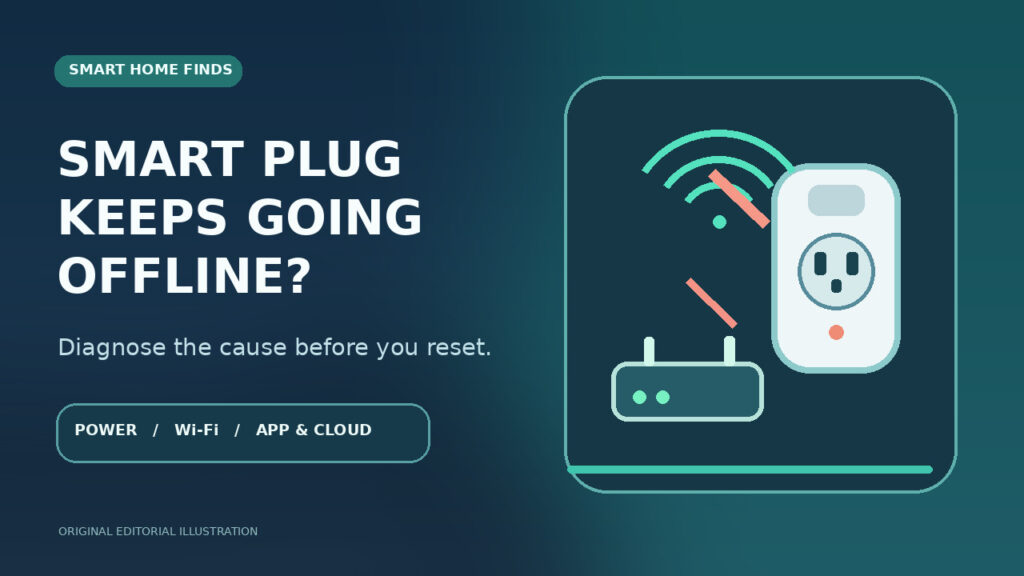

Quick answer: When a smart plug keeps going offline, check its power indicator, whether other smart devices are affected, and whether the manufacturer’s app can still reach it on your home network. Then investigate Wi-Fi signal strength, the correct wireless band, and recent router changes. Factory reset should be one of the last steps because it can erase pairing and break automations.
A smart plug can appear “offline” for several different reasons. It may have lost power, disconnected from the router, or temporarily lost access to the vendor’s online service. Those failures can look identical in a phone app, but they need different fixes. This troubleshooting guide helps you tell them apart without changing your entire smart home setup.
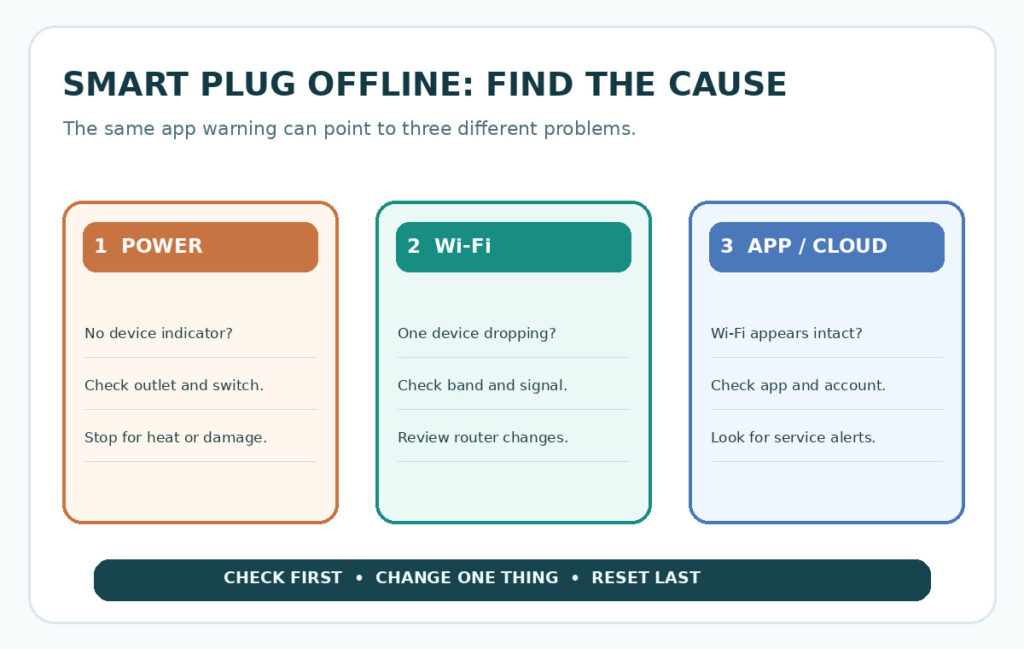
First, identify what “offline” actually means
Look at the plug’s indicator light and compare its behavior with the instructions for your exact model. A steady light, blinking light, and unlit indicator do not mean the same thing across brands. Next, check whether other devices on the same Wi-Fi network are still working.
| What you notice | Likely area to investigate | Best first check |
|---|---|---|
| No indicator light or response | Power or device hardware | Check the outlet and the manufacturer’s LED guide |
| Only this plug goes offline, especially far from the router | Wireless coverage or interference | Compare performance in a closer suitable location |
| Several smart devices disconnect together | Router, access point, or service availability | Check the router and whether the internet is working |
| The device responds locally but looks offline in its app | App, account, or cloud connectivity | Check the vendor’s status information and sign-in |
| Problems began after a new router or Wi-Fi password | Saved network credentials or compatibility | Review SSID, password, security mode, and 2.4 GHz support |
These are diagnostic clues, not definitive diagnoses. The available indicators and local-control functions vary by model.
1. Record when the smart plug disconnects
Before changing settings, note whether the plug goes offline every few hours, at the same time each night, or only after a power interruption. Check whether it reconnects automatically. A repeatable pattern is more useful than a single “offline” screenshot.
Record the plug model, firmware version if available, router model, and time of failure. If you have several identical plugs, compare the working and failing units. That helps distinguish a single-device problem from a broader network change.
2. Check power and electrical safety first
If the indicator is dark, verify that the wall outlet is working using an ordinary compatible device, provided it is safe to do so. Check whether a wall switch or circuit has been turned off. Do not open the smart plug, outlet, or electrical panel to investigate a connectivity problem.
Stop using the plug if you notice unusual heat, discoloration, buzzing, melting, a burning smell, or repeated tripping of electrical protection. A disconnected app is inconvenient; an unsafe outlet needs professional attention. Do not connect high-draw appliances or heaters unless the exact plug and appliance are explicitly approved for that use.
3. Separate Wi-Fi problems from app or cloud problems
First, check whether your phone can use the home internet connection. Then look for any manufacturer service notice or app incident. If the plug supports a documented local-control feature, test that feature on the home network. A device that remains locally reachable may have an account or cloud-service issue rather than a failed Wi-Fi radio.
Not every smart plug supports local control, so an app showing “offline” is not enough evidence by itself. If one phone reports the device offline while another signed-in phone works, investigate the app version, account, and phone connection before resetting the plug.
4. Confirm the wireless band supported by your model
Many Wi-Fi smart plugs connect only to 2.4 GHz Wi-Fi, even when the router offers a 5 GHz or 6 GHz network. For example, TP-Link’s current Tapo setup documentation specifies 2.4 GHz for supported Tapo plug models. Check your own manufacturer’s manual rather than assuming all smart plugs have the same capabilities.
A combined network name or band-steering feature is not always a problem, but some pairing applications have trouble during setup. If the vendor recommends a temporary, separately named 2.4 GHz network, use it only as a controlled test. Avoid permanently weakening Wi-Fi security just to make a device connect.
5. Test the plug’s signal where it actually operates
A router in the same house does not guarantee a reliable connection inside a kitchen cabinet, behind a television, or across several thick walls. If safe and practical, test the plug in another ordinary outlet closer to the router, without moving an unsuitable appliance or exposing cables.
If the plug works reliably closer to the access point, focus on coverage rather than deleting its account. Review mesh-node placement, wall obstructions, and crowded radio areas. Our mesh Wi-Fi placement guide explains why an extender placed in the dead zone may not solve the underlying connection problem.
6. Review changes to your router and Wi-Fi settings
Did the problem start after changing your internet provider, replacing the router, renaming the Wi-Fi network, or updating wireless security? A plug may continue trying to join an old network name or credentials. Confirm that the router’s supported wireless modes match your device manual, and check that the router has room for additional connected clients.
Where a manufacturer specifically recommends it, 2.4 GHz channel-width and channel settings can be adjusted to reduce interference. TP-Link’s troubleshooting guidance gives 20 MHz channel width and channels 1, 6, or 11 as examples, but these are not universal settings for every network. Save your original router configuration before changing one setting at a time.
7. Look for interference rather than adding more hardware
Microwave ovens, busy neighboring Wi-Fi networks, other wireless equipment, and nearby electronics can affect a 2.4 GHz connection. Try changing physical placement or temporarily moving an interfering device when safe. Avoid changing channels, mesh settings, and router security all at once: you will not know which change actually helped.
If several devices drop offline simultaneously, inspect the shared router or access point before buying new smart plugs. If just one plug fails repeatedly after being moved to a good-signal location, a device-specific fault becomes more plausible.
8. Check firmware, app updates, and conflicting integrations
Update the official companion app and install manufacturer-supported device firmware when the plug has a stable connection and it is safe to do so. If the problem began immediately after an update, note the version and check the vendor’s support pages for known issues. Avoid installing unofficial firmware to repair a basic connectivity fault.
Some devices are controlled by both a manufacturer app and an external platform. Temporarily disable a nonessential integration only if the manufacturer’s instructions support that test, then observe whether the offline behavior changes. Do not remove permissions or delete the device from every ecosystem at once.
9. Reset and re-pair only when the simpler checks fail
Restarting a device and factory-resetting it are different operations. A restart may preserve settings, while a factory reset can remove the Wi-Fi credentials and platform pairing that your automations depend on. Read the exact reset sequence for the model and hardware revision before proceeding.
Record the plug’s room name, schedules, linked automations, and network information first. If the manufacturer recommends re-pairing after a router change, follow that documented process with the correct network credentials. Then test basic app control before rebuilding schedules or voice routines. Our smart plug setup guide
How to tell if the fix really worked
A device that reconnects once is not necessarily fixed. Monitor it over the period when it normally fails. Confirm three things: the plug stays online, it responds to a basic on/off command, and any necessary automation behaves as expected. If the device controls equipment that should not automatically restart, test its power-restoration behavior before enabling schedules.
Keep a brief troubleshooting log: date, symptom, one change made, and result. If the plug still disconnects, share those details with the manufacturer. The official TP-Link guidance also recommends recording LED status, router information, how often disconnection occurs, and whether the device works on the local network.
Frequently asked questions
Why is my smart plug offline when the Wi-Fi works?
Wi-Fi working on your phone does not prove that the plug has adequate signal, the right network credentials, or access to its vendor’s service. Check the plug’s indicator, its 2.4 GHz requirements, and whether other devices on the same network are affected.
Should I turn off 5 GHz or disable my router firewall?
Not as a blanket fix. Some manufacturers recommend temporary setup adjustments, but you should follow the instructions for your exact model and maintain appropriate network security. Do not disable encryption or other protections simply to avoid re-pairing.
Will factory-resetting my smart plug erase schedules?
It may remove pairing, locally stored settings, or automation references. What remains in the vendor’s cloud app varies. Document the configuration and consult the manufacturer’s instructions before resetting.
Is a new router the best solution?
Only after evidence points to a shared network problem or inadequate coverage. A single smart plug that fails even close to a stable router may need device-specific support, while several plugs disconnecting together suggest checking shared infrastructure first.
Practical takeaway
Power → device status → Wi-Fi coverage → router settings → app/cloud → updates → reset. Following that order avoids unnecessary factory resets and makes each troubleshooting step informative. If you are building a separate smart-device network, see our guide to a separate Wi-Fi network for smart devices.
Sources and further reading
- TP-Link: Troubleshooting a Tapo device that keeps going offline (manufacturer guidance, updated August 18, 2026).
- TP-Link: What to do if a Tapo smart plug cannot be configured (manufacturer guidance, updated September 4, 2026).
Editorial note: This is a general troubleshooting guide based on manufacturers’ published documentation. Behavior varies by brand and model; it is not a claim that Smart Home Finds independently tested every product described.
About the Author
Farhan Saputra
Troubleshooting and Maintenance
Farhan Saputra is an editorial pen name used by the Smart Home Finds team for troubleshooting, maintenance, and practical solutions to common connected-home problems. Articles published under this name emphasize step-by-step checks, sensible safety precautions, and knowing when to consult a qualified professional. The site's editorial team prepares and reviews the information. The byline identifies an editorial writing profile rather than a personally certified technician or a claim of firsthand testing.
This content is published through the editorial process of Smart Home Finds. Editorial pen names identify writing roles and do not constitute verified personal identity, employment history, or professional credentials.