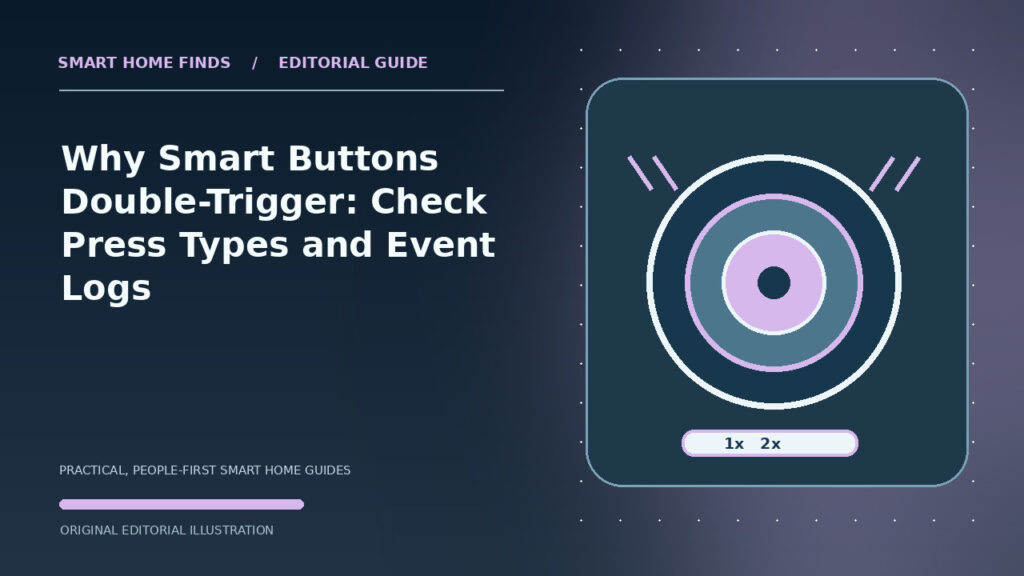

A small wireless smart button is supposed to make automation simpler. When one press triggers a lamp twice, changes the brightness unexpectedly or runs a scene only some of the time, the cause could be the button's event types, overlapping software rules or unstable communication. Resetting the device immediately may destroy useful evidence. Start by finding out whether the system received one event or two.
Describe exactly what happens
Record whether one physical press produces two notifications, whether a single press is mistaken for a double press, and whether the behavior occurs only in a particular room. Note the time and the button's battery status if available.
Different symptoms point to different layers. Two event entries suggest a different investigation from one event that happens to trigger two independent automations.
Inspect the platform's event log
Open the hub's official event history or automation trace and reproduce the issue once under safe conditions. Look for event labels such as short press, double press, long press, release or hold. Some devices issue more than one event type during a single interaction.
Do not assume an event log shows every radio packet or every cloud action. It is a useful application-level view, not a complete wireless diagnostic.
Look for overlapping rules
Search the hub and connected apps for every routine bound to the button. One scene might exist in the native hub, the voice assistant and a third-party integration simultaneously. A single physical event can therefore initiate two legitimate commands.
Disable one redundant mapping at a time. If the issue disappears, consolidate the behavior into one clearly owned automation rather than leaving several competing rules active.
Distinguish double-click recognition from accidental duplicates
Some buttons delay the single-click action briefly because the firmware is waiting to see whether a second click follows. Other integrations expose separate pressed, held and released events. Build the routine around the event types the device actually provides.
If the platform offers a supported debounce or cooldown option, use it cautiously: an excessive cooldown can suppress intentional fast presses. Avoid inventing a timing threshold from another button model.
Check power and wireless reliability
A weak battery or marginal mesh connection can produce missed responses or delayed reports. Review the manufacturer's battery specification, hub placement and support guidance. Note whether problems correlate with distance, metal enclosures or recently moved routers.
Do not conclude that radio interference creates duplicates in every case. Compare observations before changing network channels or resetting a mesh that other devices depend on.
Test the action independently of the button
Trigger the target scene directly in the automation app. If it still performs twice, investigate the scene or controlled device instead of the button. If it runs once, focus on the button event mapping and integrations.
Keep the target action low-risk while testing. A light or notification is safer for diagnosis than a door lock, heater or motorized device.
Document the final mapping
Once corrected, write down which button action runs which scene and where the mapping lives. Test single, double and hold presses separately, then verify the manual fallback and what happens after hub restart.
Only re-pair or factory-reset after confirming the recommended procedure and saving relevant configurations. The simplest working rule is usually more robust than several layers of clever fixes.
Quick checklist
- Physical symptom and timestamps recorded
- Event logs distinguish one event from two
- Duplicate automations removed
- Press types mapped deliberately
- Battery and wireless conditions checked
- One safe scene tested successfully
Key takeaway: Treat double-triggering as an event-routing problem until evidence shows otherwise. Logs, mapping ownership and one-change-at-a-time testing usually reveal more than repeated device resets.
Related Smart Home Finds guides
- Voice Assistant Routines: How to Avoid Accidental Commands and Conflicting Automations
- Why Zigbee Devices Keep Dropping Offline: A Practical Troubleshooting Order
About the Author
Daffa Oktaviani
Smart Home Fundamentals
Daffa Oktaviani is an editorial pen name used by the Smart Home Finds team for smart home fundamentals, wireless connectivity, voice assistants, and home automation. The guides associated with this byline explain how connected systems work, how to set them up thoughtfully, and how to avoid common mistakes. Articles are prepared and reviewed through the site's editorial process. The name is an editorial byline, not a claim of individual credentials or personal field experience.
This content is published through the editorial process of Smart Home Finds. Editorial pen names identify writing roles and do not constitute verified personal identity, employment history, or professional credentials.