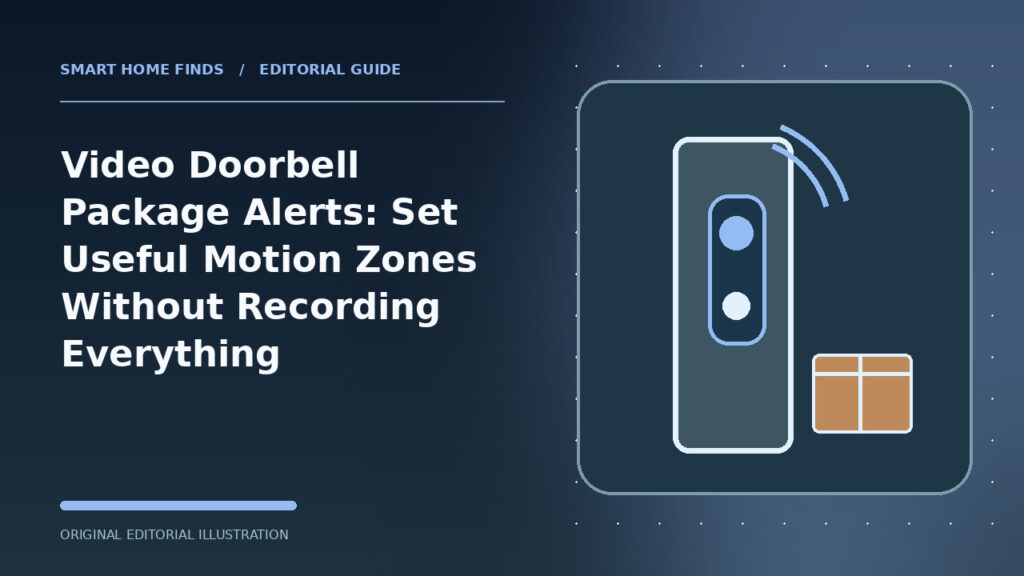

A video doorbell may deliver dozens of motion alerts without capturing the few events a household actually cares about. Package deliveries, people approaching the door, passing cars, and swaying plants can all look similar to broad motion detection. More useful alerts come from deliberate camera placement, modest detection zones, and testing the complete event recording rather than only the notification.
Start with the delivery area
Identify exactly where a courier usually leaves parcels. View a sample recording at the camera's normal quality and check that the area is visible without requiring the lens to point at neighboring windows or private spaces. A delivery area near the bottom of the image may be missed by some mounts.
A wedge mount can change the viewing angle, but only use accessories approved for the device and its weatherproofing. The goal is to include the approach and delivery spot without collecting unnecessary background footage.
Define activity zones that match the task
If supported, draw a zone around the approach and doorstep rather than the entire street. Some systems distinguish between detection zones and privacy masks: one changes which movement produces alerts, while the other hides part of the image. Confirm what your specific app actually does.
Do not assume that a zone prevents everything outside it from being recorded or uploaded. Review the platform's documentation on recording, alerts, cloud processing, and stored video before deciding that a configuration meets your privacy needs.
Tune detection to real deliveries
Choose useful notification classes such as person, motion, or package only when the device genuinely supports them. AI labels are not guaranteed; a small parcel, unusual lighting, or an obstructed view can cause mistakes. Avoid disabling all motion alerts until you know the package feature works at your address.
Test a realistic delivery: someone walks toward the door, places a box, and leaves. Check whether the recording starts early enough to show the approach and whether the alert arrived in a useful timeframe.
Check day, night, and weather conditions
Morning glare, porch lighting, infrared reflections, and rain on the lens may change detection performance. Review the same approach at different times, especially if a package may arrive after dark. Keep the lens clean using the manufacturer's guidance.
Avoid mounting accessories that interfere with the camera, microphone, doorbell button, or ventilation. Stable Wi-Fi and adequate power matter just as much as the motion configuration.
Make a notification plan for the household
Decide who should receive deliveries and visitor alerts, and which notifications can be silenced during sleep or work. If the app supports separate schedules, choose them carefully so important access events do not disappear without anyone realizing it.
Check retention periods and delete unnecessary footage according to the service's documented controls. Review guest sharing and two-factor authentication, especially when multiple phones can access video clips.
Checklist before you finish
- Delivery location is fully visible
- Motion zones and privacy masks are understood
- A real-world package test was successful
- Nighttime picture and alert timing were checked
- Only appropriate household members have recording access
The best doorbell setup is not the one with the most alerts. It is the one that reliably tells you about meaningful activity at your entrance while keeping unnecessary recording and interruptions under control.
Related guide: Outdoor Security Camera Placement: Better Coverage Without Invading Privacy.
Related Smart Home Finds guides
About the Author
Rania Nugraha
Devices and Connectivity
Rania Nugraha is an editorial pen name used by the Smart Home Finds team for connected devices, product-selection guides, compatibility, and home technology. Articles under this byline help readers understand specifications, compare practical requirements, and consider reliability, security, and ongoing costs before choosing a device. The content is managed and reviewed by the editorial team. This pen name does not represent a verified individual expert or imply professional qualifications.
This content is published through the editorial process of Smart Home Finds. Editorial pen names identify writing roles and do not constitute verified personal identity, employment history, or professional credentials.