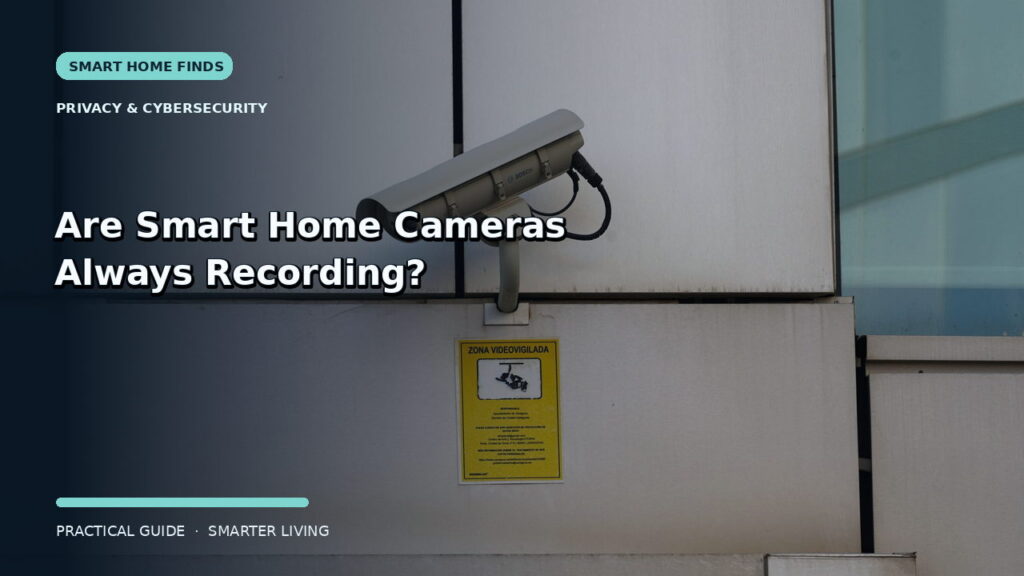
Smart home cameras are not all recording continuously. Some save clips when motion is detected, some support continuous recording to local storage, and others only provide live viewing until a recording option is enabled. The camera's actual behavior depends on its model, settings, power source and storage plan.
Understand the requirements
Map the information flow from a device to the phone, hub and optional cloud account. A local radio signal does not reveal whether history is also synchronized elsewhere, so distinguish the physical device, service account and each linked integration. The right configuration depends on which information the household actually needs and who is authorized to receive it.
Settings and ownership to review
Find the recording mode in the official app and check what starts a clip, how long it lasts, and where footage is stored. Test a normal motion event and view the resulting recording. If the camera uses a battery, confirm whether continuous recording is even supported.
Use the provider's current security and privacy dashboards to check what changed. Confirm that the intended user can still perform the main device action and that removed permissions no longer appear. When an account or integration is revoked, check both the original service and the connected home platform rather than trusting a single confirmation message.
How to check the result
Look at timestamps and gaps in the event timeline rather than assuming every minute is covered. Disconnect the internet briefly only if the manufacturer's procedure permits a safe test; locally stored clips and cloud recording can behave differently. Include the household's privacy expectations when selecting the recording area.
Privacy, safety and support limits
A live preview and a push notification do not prove footage was saved. Continuous recording can require mains power, additional storage or a subscription. Review retention, access rights and local rules before pointing cameras at shared areas.
Prefer targeted restrictions over disabling every network connection. Some devices need supported internet access for patches even when everyday controls work locally. If an account compromise is suspected, use official recovery channels on a trusted device and prioritize equipment that controls doors or exposes household recordings.
Key points to check
- Find the recording mode in the official app and check what starts a clip, how long it lasts, and where footage is stored.
- Look at timestamps and gaps in the event timeline rather than assuming every minute is covered.
- A live preview and a push notification do not prove footage was saved.